A design system and motion kit for Elementor's Atomic editor
Nori for Elementor adds 92 editable global classes, 34 variables and 23 lightweight modules to Elementor 4, plus 20 page templates in 4 styles and a site header and footer. Import them in one click, style them in the Elementor editor like any class you made yourself, and reset any of them to its default whenever you want.
Requires WordPress 6.5+, PHP 7.4+ and Elementor 4 with the Atomic editor on. Size variables need Elementor Pro.
What's inside
Switch on only what you need. Every module has a live demo running the plugin's own code.
A control panel that fits WordPress
Everything lives under Nori in your WordPress menu: one screen with a sidebar for your design system, page templates, modules and tools, and one save bar for all of it.
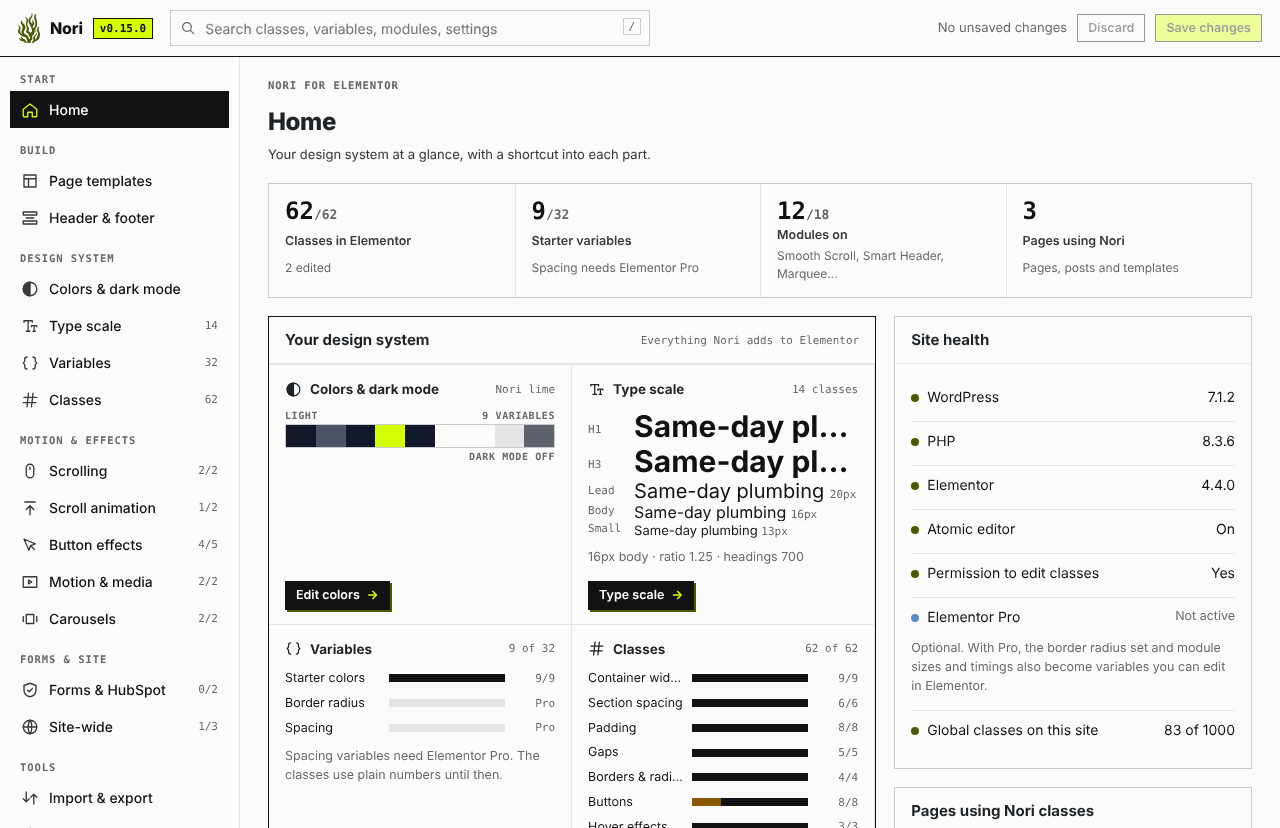
Your design system at a glance
- Colors, type scale, variables, classes and modules on one screen, each with a shortcut.
- The pages that use Nori classes, and what you edited in Elementor.
- Site health checks with suggested fixes, and exactly what modules add to your pages.
- On a new site, one button adds the whole starter design system.
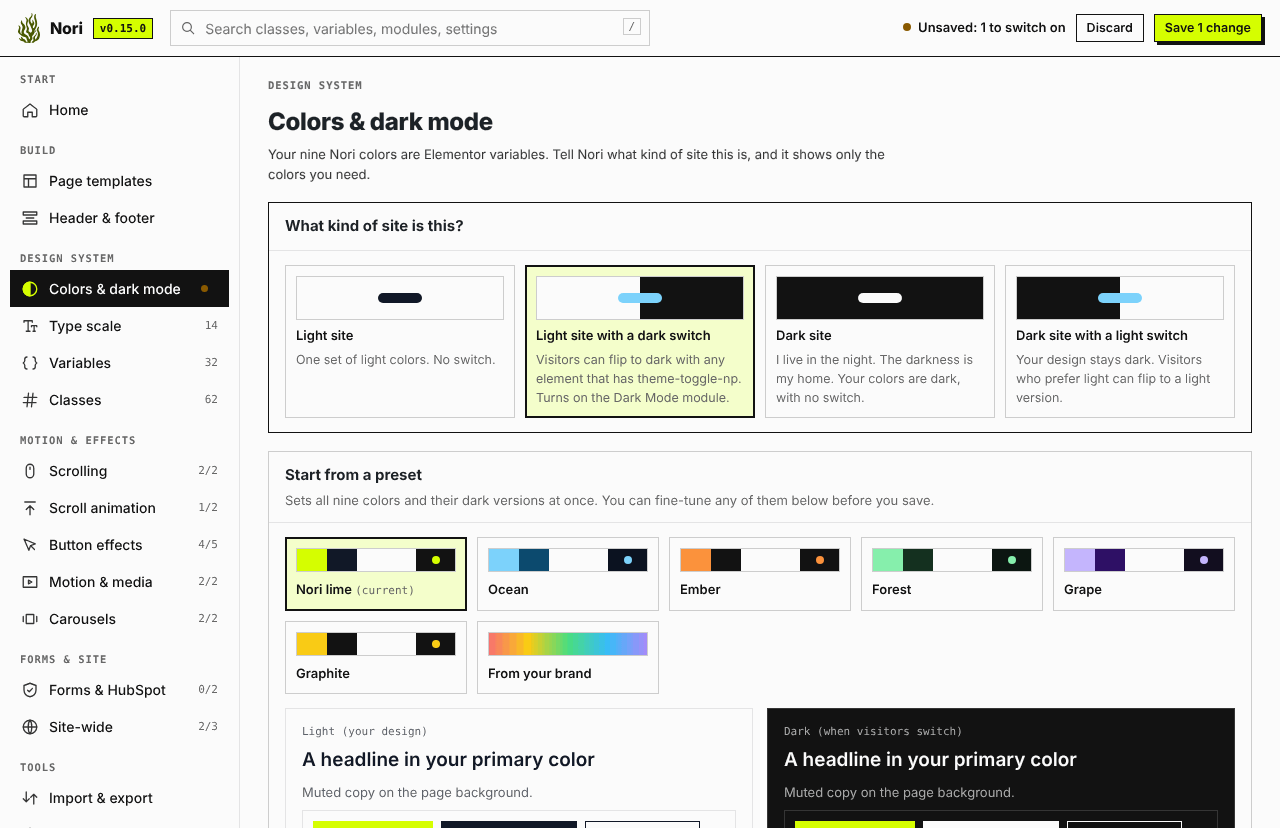
Colors and dark mode in one place
- Tell Nori what kind of site it is: light, light with a dark switch, dark, or dark with a light switch.
- Six brand presets, or Generate colors from your own brand color.
- Each of the nine colors next to its second version, previewed both ways.
- Your own Elementor colors get a second version too, with Suggest.
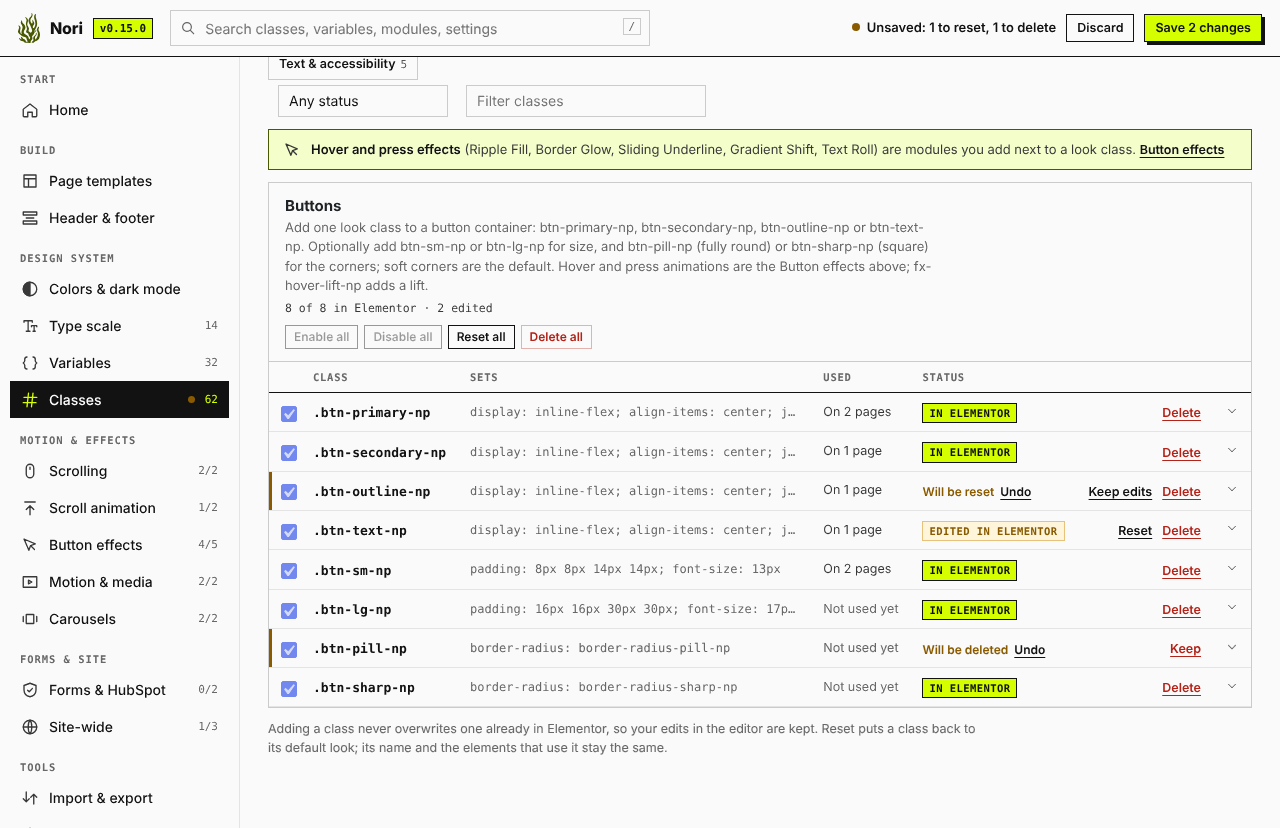
One save bar for everything
- A change only counts while it differs from what’s saved; change it back and it’s gone.
- The sidebar marks every section you changed.
- Classes you edited in Elementor are marked and never overwritten. Reset puts them back.
- Deletes ask first, right in the page, and say how many pages use them.
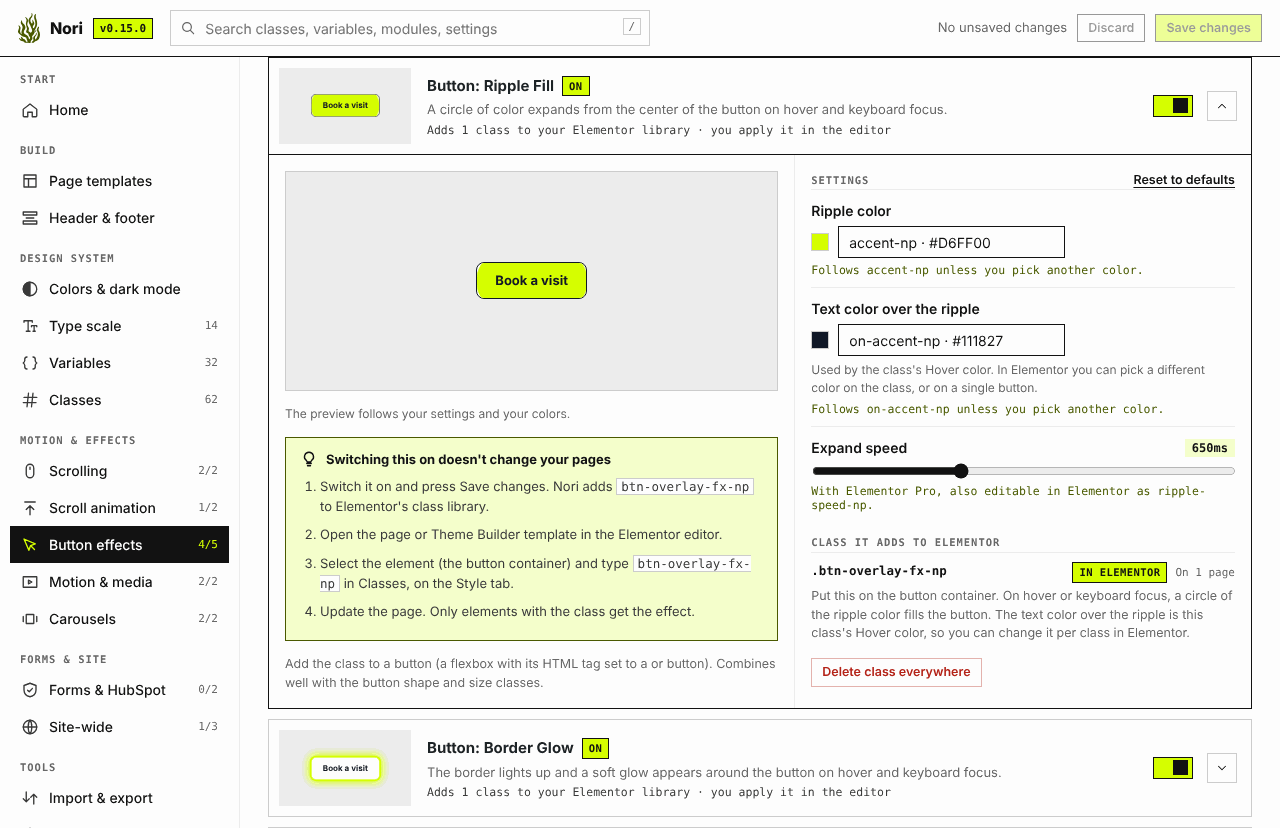
Set the starting point, fine-tune in Elementor
- Every module opens in place, with a live preview in your own colors.
- Switching a module on only adds its classes to your library, and it says where each one goes.
- Settings become Elementor variables, so you can adjust them in the editor. Changes made there show up here too.
- Switching a module off keeps its classes; one button removes them everywhere.
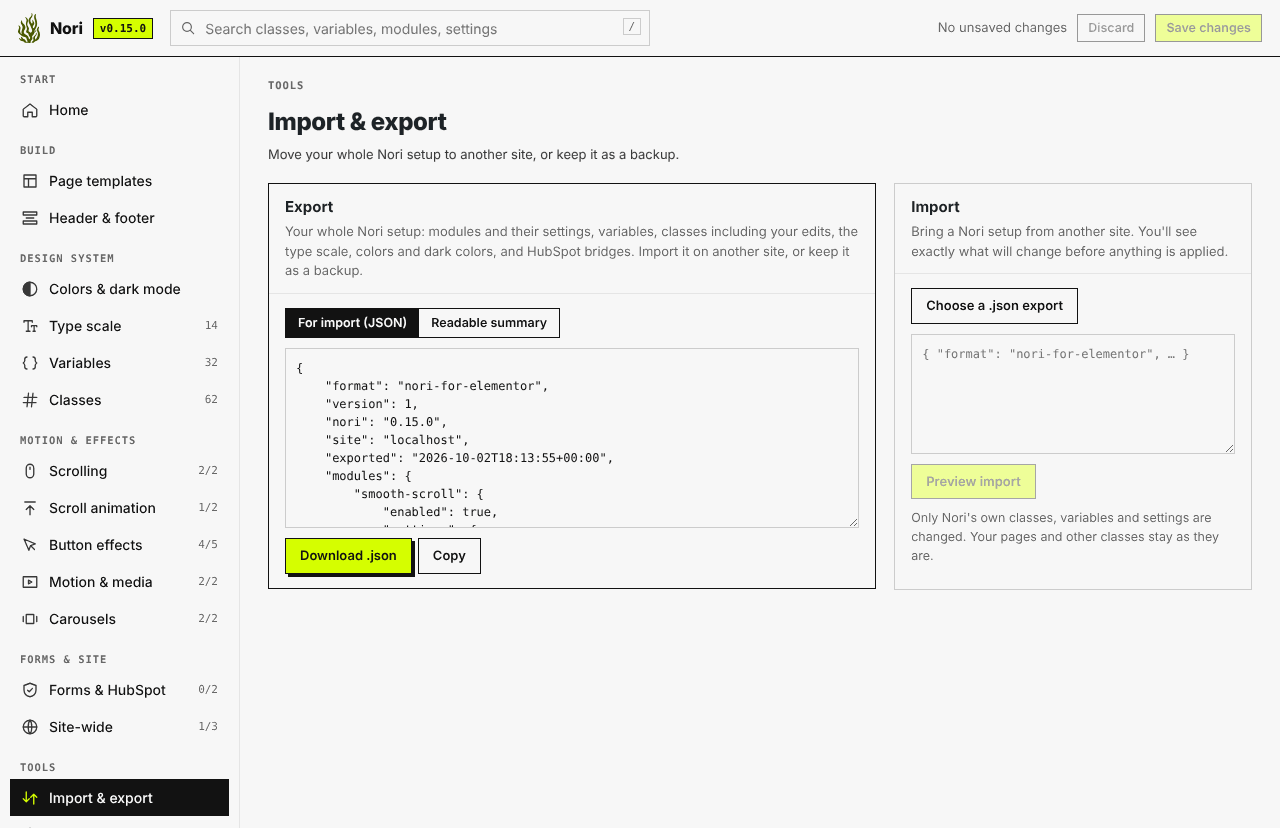
Move your setup to another site
- Download modules, settings, variables, classes (with your edits), colors and HubSpot bridges as one file.
- Import it on another site and preview exactly what will change first.
- Choose what happens to classes edited on both sites.
- Keep a copy as a backup before big changes.
Built for MCP
Everything you can do in the Nori screen, an MCP client can do too. Nori has its own MCP server at /wp-json/nori/mcp (WordPress 6.9+, with Elementor's MCP or the MCP Adapter plugin), for administrators only, with an application password. The same tools are WordPress abilities, so your own code can call them as well.
Site
nori-site-statusVersions and what's missing (read only)nori-site-setupStarter design system, title, logo, header and footer, home page
Design system
nori-apply-brandBrand colors and light or dark sitenori-set-typographyFonts and type scalenori-list-modules/nori-set-modulesModules and their settings
Pages
nori-list-templatesStyles, templates and their content slotsnori-create-pageA page from templates, with your textnori-get-pages/nori-update-pageChange a page in place, one section or all
Media and SEO
nori-add-imageImages into the media library, logo and site iconnori-set-seoTitles, descriptions and sharing images in Yoast SEO
Ready to try it?
In WordPress, go to Plugins → Add New, search for Nori for Elementor, install and activate, then open Nori in your WordPress menu. Your classes, variables, modules and templates are a click away.
- Elementor 4 with Atomic
- Works without Elementor Pro
- About 750 KB, no CDNs
Questions
What happens to my edits when I import again or update the plugin?
They're kept. Adding only brings in classes that are missing, and Nori never overwrites a class you've edited. Updates refresh only the classes you never touched. Use Reset on a class to go back to its default.
Do I need Elementor Pro?
No. All classes, the color variables and all modules work with free Elementor 4. Elementor only offers size variables with Pro, so on free sites the radius and spacing classes use plain numbers instead, and module sizes and timings stay in Nori's settings. Form spam protection applies to Elementor Pro forms.
Do the page templates need Elementor Pro?
No. The pages work with free Elementor 4. For the site header and footer, Nori uses Elementor Pro's Theme Builder when you have it. Without Pro, Nori shows its own header and footer on every page when your site uses the Hello Elementor theme; with another theme, your theme keeps its own.
Does Nori work with MCP and AI assistants?
Yes. Nori is built to be driven over MCP (the Model Context Protocol), on WordPress 6.9 or later. Its MCP server is at /wp-json/nori/mcp and has twelve tools: check which versions of Elementor, Elementor Pro, Hello Elementor and Nori the site runs (read only); list the templates and modules; add images to the media library; set up the site, its brand colors, fonts and type scale; make pages from the templates and change them in place; set SEO titles, descriptions and sharing images in Yoast SEO; and switch modules on. Turn on Elementor's MCP in Elementor's settings (Elementor 4.4 and later) or install the WordPress MCP Adapter plugin, create an application password for an administrator, and add the server to your MCP client. Only administrators can use the tools, and Nori never calls an AI service itself.
How do I build a button?
Make a flexbox with its HTML tag set to a or button, put your text inside, and add one look class such as btn-primary-np. Add btn-sm-np or btn-lg-np for size, btn-pill-np or btn-sharp-np for round or square corners, and any effect class on top. Try the button builder.
Can I copy my setup to another site?
Yes. Under Import & export, Download .json saves your modules, settings, variables, classes (with your edits), colors and HubSpot bridges as one file. On the other site, Import shows a preview of every change before anything is applied, and lets you choose what happens to classes edited on both sites.
Can I use my own form design and still send entries to HubSpot?
Yes, with the HubSpot Bridge. Build the form with Elementor's Atomic form, paste your HubSpot embed code into Nori, and add the class it gives you to the form. Your form's fields must match the HubSpot form: for each HubSpot field, add an input of the right kind and set its ID (select the input, Settings, ID) to the HubSpot field name, like email. Every required field needs its input, or HubSpot rejects the entry. No HubSpot API key is needed, and WordPress never stores what visitors type. The Atomic form needs Elementor Pro.
Do I need a CAPTCHA to stop form spam?
Usually not. Form Spam Protection stops the bulk of form spam with an invisible honeypot, a one-time pass your server checks and a too-fast-to-be-human check, so visitors never have to solve anything. It shows you what it blocked, and a test mode lets you check nothing real is caught.
What happens if I delete a variable?
Classes that used it keep its value, so nothing on your pages changes. They show as edited in Nori; add the variable back and press Reset to reconnect them.
Why do the class names end in -np?
So they never collide with classes a site already has. gap-s-np can sit next to your own gap-s without either one changing.
Will the modules slow my site down?
Only modules you switch on load, each is a few kilobytes of plain CSS and JavaScript, and nothing is fetched from a CDN. They stay idle inside the Elementor editor.
What happens if I uninstall Nori?
Nori removes its own settings. The classes and variables stay in Elementor, because your pages use them.